Showing posts with label how-to. Show all posts
Showing posts with label how-to. Show all posts
Tuesday, April 23, 2013
Transfer ownership of Google Apps for Education files in Google Drive to an external account
I did some research, and the Google Apps for Education prevent users from transferring ownership of documents outside their own domain.
However, there is a pretty straightforward work around - make a copy of the document in your new new domain's account.
Here are steps on how to make this work:
Open Google Drive
Create a new folder, and move collections of files into it that you're going to want in your new new domain's account
Click the checkbox to the left of the Folder name in the "drive" view, which will "select all" of the documents in the folder you created.
Click the More button
Click Share
Type in your new domain's e-mail in the bottom box, and give yourself "edit" rights
Click Share and Save.
Click Done when you're finished.
Now, log out of your old domain's e-mail, and log into your new domain's e-mail
Click Drive in the upper black title bar at the top of your e-mail window
You should hopefully see the folder from yourself. It might be listed under "Shared with me" instead of in your drive.
Click the folder to open it
Click the check box ABOVE the checkbox to select the first item, to have it select all files in the folder
Click the More menu
Click Make a Copy
Depending on the number of files, this may take a while. It will create a copy of the file in your drive, with the sharing turned off.

Wednesday, April 10, 2013
Forcing Google Safe Search at Home
Question from a parent this week about forcing Google's Safe Search and whether there's a way to do that on a home computer:
Here are the steps to turn on Google's safe search and force it to stay on.
The following link from Google's support site talks about a way that you can turn on Google's "Safe Search" and lock it on for your browser. You may have to do this for each browser (i.e. firefox, chrome, Internet Explorer or Safari) as well as per user account if you all use different accounts on a shared computer.
http://support.google.com/websearch/answer/144686?hl=en
The District forces Safe Search using an Internet Safety appliance called Barracuda Web Filter, which does this for all students and staff automatically.
Thursday, December 13, 2012
Tech eNews 12-13-2012
Topics for this Tech eNews 12-13-2012
1. Registration is still open for Tech PD Classes
2. Please turn off computers before leaving for break
3. Thank you to Kim Dillon and Jay Bennett
4. Surplus Soon
5. Timecard Printing Guide
6. NCCE Computer Conference in Portland 2/26/13 to 3/1/13
7. Tech Blog Has Archive of eNews and other Tech Related Articles
1. Registration is still open for Tech PD Classes
Teachers and other staff are welcome to register for this year’s Technology Professional Development Classes. A full list of classes is on the Technology website, and you can sign up using an easy online form. Click here to sign up!
Classes this year include options for a shorter series of courses where you can still get clock hours (10 Websites in 2 90 minute sessions, Google Sites/Docs/E-mail/WESPaC Gradebook), new topics (Prezi, Digital Cameras & Photo Management), and some familiar favorites (iMovie, Excel, and the Document Camera class). A full list of the course descriptions is here:
2. Please Turn Computers OFF Before Leaving for Break
As you are getting ready to leave for a wonderful, relaxing Winter break, please take a few minutes and turn all the computers in your classroom off. Doing this saves electricity and keeps your tech support staff happy!
3. Thank you to Kim Dillon and Jay Bennett for Leading the First Tech Classes
A very big “thank you” to Kim Dillon and James Bennett for leading the first two Technology PD classes this year. Kim’s Research Databases class was well received, and Jay’s Google Sites class was a great opportunity for participating teachers to spruce up their websites.
4. Surplus Soon – Get Rid of Those Dust Collecting Paperweights
If you have old, unwanted equipment in your classroom that you no longer have a use for, you can use the surplus process to get rid of it. Your building’s inventory designee (Deana Degrande at CCMS, Deborah Mansfield at Cape, Marlene Leifsen at Gause, Kathy Stanton at Hathaway, Debbie Leifsen at Jemtegaard, and Misty Young at WHS) can help you process paperwork to dispose of the item appropriately, and remove it from your classroom’s inventory. There will be a surplus run in January, near the end of the month, so work with your inventory person now to get items taken care of before break.
You can read more about the inventory and surplus process here, including finding forms to dispose of equipment.
5. Timecard Handout by Sean Elkinton
Some staff have been having problems downloading and printing the new electronic Timecards. Tech support staff person Sean Elkinton has developed a short guide to do this, starting from the computer’s login screen. If you need help, please ask your building’s Tech Support staff person for help!
6. NCCE Computer Conference Opportunity for Teachers Feb 26-Mar 1, 2013
Are you interested in learning more about Technology and curriculum, and then teaching your colleagues about it? If you are, please take a few minutes to look over the linked catalog for the NCCE (Northwest Council for Computers in Education) conference, which is in Portland this year. The district is looking for a group of around 10 teachers to attend the conference, learn from the workshops, and then re-create them here for a larger group of our teachers.
If this is something you’d be interested in, please use the Google Form to indicate your interest, the classes you think would be valuable, and how you’d be interested in teaching it to your peers. David Tudor and Les Brown will decide on a list of attendees after the deadline, which is January 9.
We are open to pairs of people who are interested in taking a workshop together to bring back and co-present, as well.
Information about the NCCE Conference:
List of workshops:
Link to the Google Form for Washougal to sign up:
Monday, December 3, 2012
Create and share a calendar
To create a new calendar, just follow these steps:
- Click the drop-down arrow to the right of My calendars
- Select Create new calendar
- Enter information about your new calendar
- Click the Create calendar button
To share that calendar with a specific person via e-mail:
- In the calendar list on the left side of the page, click the down-arrow button next to the calendar you created above, then select Share this calendar.
- Enter the email address of the person you want to share your calendar with.
- From the drop-down menu, select a level of permission, then click Add. (Once you click Add, the person you selected to share the calendar with will receive an email invitation to view your calendar.)
Re-posting from the Google Calendar support at http://support.google.com/calendar/bin/answer.py?hl=en&answer=37095
Wednesday, November 28, 2012
Tech eNews 11-28-2012
Topics
for this Tech eNews 11-28-2012
1. Register for Tech PD Classes
2. Labeling Personal Property as Yours
3. K-5 Progress Report Window Open
4. Prep for Mid-year Surplus
5. Turning on Video Mirroring
6. Internet Research Strategies Class is Thursday!
7. Turn on icon labels in Google Mail
1.
Register for Tech PD Classes
Teachers
and other staff are welcome to register for this year’s Technology Professional
Development Classes. A full list
of classes is on the Technology website, and you can sign up using an easy
online form. Click
here to sign up! (Requires that you have a WashougalSD.org e-mail)
Classes this year
include options for a shorter series of courses where you can still get clock
hours (10 Websites in 2 90 minute sessions, Google Sites/Docs/E-mail/WESPaC
Gradebook), new topics (Prezi, Digital Cameras & Photo Management), and
some familiar favorites (iMovie, Excel, and the Document Camera class). A full list of the course
descriptions is here.
2.
Labeling Personal Property as Yours
During
the district wide inventory, a common problem that we run into are personal
items not marked as “personal” equipment.
Tech staff have some small white labels you can affix to your equipment
to help make sure it doesn’t get accidentally tagged during a future
inventory. If you have equipment
you keep in your classroom, particularly items that are similar to equipment
already owned by the district, it is helpful if you would label it.
3.
K-5 Progress Report Window Open
The
fall progress report window for K-5 teachers is open. Teachers in K-5 can log in at https://www.edusoftdev.com using their
first.last and their password to enter grades. Make sure you choose “Washougal” as the district name. If you have forgotten your password,
contact your building tech support person, and they can help you reset it.
Some
important dates for K-5.
The
end of grading trimester is 11-30-2012.
The
cut off date for Teachers to enter grades - 12-10-2012 at noon.
Printing
either by Teachers or Tech people - 12-11-2012
Report
cards back to Teachers for proofreading - 12-12-2012
Report
cards go home with students - 12-13-2012 (Kindergarten every other day) &
12-14-2012 everyone else
4.
Prep for Mid-year Surplus
If you have old,
unwanted equipment in your classroom that you no longer have a use for, you can
use the surplus process to get rid of it.
Your building’s inventory designee (Deana Degrande at CCMS, Deborah
Mansfield at Cape, Marlene Leifsen at Gause, Kathy Stanton at Hathaway, Debbie
Leifsen at Jemtegaard, and Misty Young at WHS) can help you process paperwork
to dispose of the item appropriately, and remove it from your classroom’s
inventory. There will be a surplus
run in January, near the end of the month, so work with your inventory person
now to get items taken care of before break.
You can read more
about the inventory and surplus process here,
including finding forms to dispose of equipment.
5.
Turning on Video Mirroring on a Mac
Sometimes when you
turn a projector on or off while it is connected to a computer, the computer’s
video mirroring setting will get turned off. Here are some short steps to turn it back on:
For Mac:
Open System
Preferences from the Apple Menu
Click Displays
Click the
“Arrangement” tab, then check the box for “Mirror Displays”
6.
Change Google Mail icons to Text Labels
Do you find yourself
wondering what the icons in Google e-mail do, and are unsure which to choose
for common tasks? Tech Support
Staff person Sean Elkinton wrote these steps for turning on Text labels, which
can make the e-mail interface easier for some people:
Click the sprocket to
go into Google Mail Settings
Find the option for
“Button Labels”
Click the Radio button
to set it to Text instead of Icons
Scroll to the bottom
and click Save.
To view a set of
directions with screen shots, click
here.
7.
Internet Research Strategies Class This Thursday
Join WHS Teacher/Librarian
Kim Dillon for a lesson that will model research strategies to use with your
students to help them find and recognize high-quality, researched, free,
student-friendly websites on the Internet, and how to avoid citing biased,
non-factual websites in their assignments. 4-7 PM; WHS Library lab on Thursday
November 29, 2012.
Monday, November 26, 2012
Block e-mail as junk messages
One of our staff people had a large volume of unsolicited e-mail, or junk e-mail, coming into her account. She was disconcerted by the e-mails, which were coming in at a pretty high rate over a couple weeks.
How to teach your google e-mail to treat messages as junk:

How to teach your google e-mail to treat messages as junk:
Please use the junk e-mail option to "teach" your e-mail that these are junk mail
It looks like a small stop octagon with an exclamation point in it. (see attached picture)
If you teach it that a few of them are junk e-mail, it'll start hiding them from you.
Friday, November 16, 2012
Add a link to a Google Site webpage
Go to the page on your Google Site where you want the link.
Click the pencil in the upper right to "edit" the page
Type in the text you want the link to look like - this can be something like Math resources for 4th grade or whatever
Highlight the text
Click the small link button (looks like a chain link) in the row of tool bar buttons:
If you are linking to a different site, click Web Address in the left column of the box that comes up, then Paste or type the link into the box that says "link to this URL."
You can check the box to have it open in a new window if you want it to do that.
Make sure you hit OK, then save changes.
Tuesday, November 6, 2012
Disable "re-open at login" option
Instructions for turning off the
feature
“Restore windows when quitting and
re-opening apps”
Open System Preferences and
click “General.”

Un-check the box at the
bottom of the screen for “Restore windows when quitting and re-opening apps.

Thursday, September 27, 2012
Tech eNews September 27, 2012
Tech eNews September 27, 2012
1. Welcome to Linda Henderson, our New Tech Support Assistant
2. Welcome to Kenneth Mai, our New Tech Support Assistant
3. Welcome to James Bennet, new Tech Coach at WHS
4. Questions about the Online Timecards
5. Google calendar embedded in webpage doesn't show events
1. Welcome to Linda Henderson, our New Tech Support Assistant
2. Welcome to Kenneth Mai, our New Tech Support Assistant
3. Welcome to James Bennet, new Tech Coach at WHS
4. Questions about the Online Timecards
5. Google calendar embedded in webpage doesn't show events
1. Please welcome Linda Henderson, Tech Support Assistant
Linda Henderson, currently subbing for Tech Support, is the new Tech Support Assistant who will be serving Cape Horn-Skye and Canyon Creek Middle School. Linda is a native of East Wenatchee, Washington, and graduated from Central Washington University with a degree in Systems Analysis. Linda has served on the district's Technology committee in the past, and is currently subbing in the Tech Support job. Linda has worked as a bookkeeper for several businesses in the area.
Linda originally moved to the Portland area from Seattle to start a deli with a friend in Milwaukee, a business that continues to thrive. Linda is the mother of a current Canyon Creek 6th grader as well as a WHS Sophomore, and a 2012 WHS graduate. She enjoys camping and volunteering with the Boy Scouts, cooking, and fishing with her husband.
Linda will start at 7:30 AM each morning, and work the following schedule:
Monday 7:30-11:30
Tuesday 7:30-11:30
Wednesday 7:30-1:30 (long day)
Thursday 7:30-9:30 (short day)
Friday 7:30-11:30
Staff with questions for Linda can reach her at Cape extension x3671. You can e-mail Linda at linda.henderson@
Linda will be sharing an office with Amy Seufert, in room 148b on the Cape side of the building.
2. Please welcome Kenneth Mai, Tech Support Assistant
Kenneth Mai is the new Tech Support Assistant who will be serving Washougal High School and Hathaway Elementary. Kenneth is an Oregon Institute of Technology graduate who has recently worked for Office Ally in Vancouver. Kenneth has an extensive technology background, having worked in tech jobs in Las Vegas, Hawaii, and Portland. He and his wife Thao, who recently married, are looking to relocate to Washougal from SE Portland where they currently reside. Kenneth is originally from Vietnam, and emigrated with his parents in 1980. Kenneth enjoys camping near Garibaldi on the Oregon coast each year, is an avid fisherman, and enjoys playing pool in his spare time.
Kenneth will be starting at 7:30 each morning at WHS, and then working afternoons at Hathaway. Staff with questions for Kenneth can reach him at WHS at ext. 3206, or at Hathaway at ext. 3823. You can e-mail Kenneth atkenneth.mai@washougalsd.org, or reach him by entering work orders in the School Dude system.
Kenneth will be starting at WHS late next week.
3. Please welcome James Bennett, Tech Coach at WHS
Jay Bennett is working 1 period a day doing technology coaching at Washougal High School this year. He’s working on helping teachers move from Tier 1 to Tier 3 in Technology use, integrating technology into their curriculum. WHS staff who are interested in working with Jay can stop by and ask him about a project they are interested in doing with students, or shoot him an e-mail.
Question 1. How do I get to the new online timesheet?
Answer. You can find it by going to the District Web Page and selecting the link in the upper right hand side of the page, "For District Employees". On the left side of that page click on the link "Timecards".
Question 2. Is the new timesheet a spreadsheet that I have to fill out?
Answer. Yes. Please fill it out using Excel and then print it up and sign it and had it back to your school secretary or the person that handled your old time sheet.
Question 3. Can I use the same spreadsheet for each month?
Answer. No. The spreadsheet will be updated for each month so check back at the website and download the one for the month that your filling out the timesheet for.
Question 4. If I work in multiple buildings, do I do more than one timecard?
Answer. Yes, if you have more than one supervisor. If you work more than two or more positions that have multiple supervisors, you'll need to do one timecard for each of the positions you hold, and then have the supervisor for each job sign the relevant timecard.
5. Google Calendar Not Showing for Students or Parents from Home (embedded in class webpage)
If you have a Google Calendar embedded in your webpage that is not showing up for parents or students from home, it could be that your "sharing" settings are not correct. You can use these steps to set it so that parents and students can see events on your calendar.
Log into your WSD web based e-mail.
Click on the word calendar in the black bar.Click on the triangle next to "My Calendars"
Find the shared calendar in the list, and click Edit sharing for the row with that calendar in it.
Check the box for "Share this Calendar with Others" and also "make this calendar public"
Choose see all events details from the drop down menu
Click Save
Thursday, June 14, 2012
Tips and Shortcuts for Web Based E-mail
Google's Gmail web interface has a lot of hidden features and shortcut keys that you can use. To view a list of these, please download this .pdf document. One really handy one is hitting tab, then space bar or enter to send a message.
http://2136722317829374289-a-googleapps-com-s-sites.googlegroups.com/a/googleapps.com/deploy-google-apps/Home/resources-user-adoption/quick-reference/Google_Mail_Shortcuts.pdf
http://2136722317829374289-a-googleapps-com-s-sites.googlegroups.com/a/googleapps.com/deploy-google-apps/Home/resources-user-adoption/quick-reference/Google_Mail_Shortcuts.pdf
Wednesday, June 13, 2012
Printing from the new e-mail system
When you're viewing an e-mail in the new e-mail system, you can print it by clicking the little "print" icon which looks like a printer, which is in the upper right corner of the e-mail you're viewing.

If the message is part of a thread of messages, and you only want to print one of them, you can click the small down arrow next to the header info to the right of the the sender/recipient info, and choose "Print".

If you scroll to the top of the thread of messages, the small print icon pictured above will be at the top of the entire thread. Clicking it will print all of the messages in the thread of messages.
Tuesday, June 5, 2012
Printing Your Progress Reports (For Grades K-5)
Elementary teachers who are interested in printing their own progress reports using the Edusoft dev software, and one of the copy machines, can do so using this printable instruction sheet created by Justin Gilson with help from Sean Elkinton.
Make sure you test print just one before you run a class set!
http://www.washougal.k12.wa.us/blog/print-k5-progress-report.pdf
Make sure you test print just one before you run a class set!
http://www.washougal.k12.wa.us/blog/print-k5-progress-report.pdf
Toolbar items missing in Excel 2011
If you're used to the tool bars in Office 2008 for Mac, you're used to having a specific set of buttons on each row of your tool bars, with certain items like "format borders" always being visible.
In the newer versions of Excel and Word 2011 for Mac, the applications will start hiding items from your "ribbon" if the Excel/Word window is not full screen. For instance, when you shrink an Excel Spreadsheet, you'll end up with a sub-set of the tools available, and there's not a way to get them back without making the window larger (or digging in the menu to find them)
In the screen shot below, the Excel window is set to be almost the entire width of the screen, and you get the full set of items in the ribbon (note the format borders icon is showing).

In the screen shot below, the Excel window is set to be about 1/2 the width of the screen, and the format borders icon, which was between the underline U and the fill background paint bucket, along with many others, have been dropped off the ribbon!

One solution is to drag the window using the right lower corner to make the ribbon show more items.
If you want, you can customize the ribbon by opening "Excel" menu, then going to Preferences. Click the ribbon item, and uncheck some of the items that you don't use. This will allow more items that you DO use to show up when the window is more narrow, hopefully keeping the items that are "must haves" for you!
In the newer versions of Excel and Word 2011 for Mac, the applications will start hiding items from your "ribbon" if the Excel/Word window is not full screen. For instance, when you shrink an Excel Spreadsheet, you'll end up with a sub-set of the tools available, and there's not a way to get them back without making the window larger (or digging in the menu to find them)
In the screen shot below, the Excel window is set to be almost the entire width of the screen, and you get the full set of items in the ribbon (note the format borders icon is showing).

In the screen shot below, the Excel window is set to be about 1/2 the width of the screen, and the format borders icon, which was between the underline U and the fill background paint bucket, along with many others, have been dropped off the ribbon!

One solution is to drag the window using the right lower corner to make the ribbon show more items.
If you want, you can customize the ribbon by opening "Excel" menu, then going to Preferences. Click the ribbon item, and uncheck some of the items that you don't use. This will allow more items that you DO use to show up when the window is more narrow, hopefully keeping the items that are "must haves" for you!
Monday, June 4, 2012
Microsoft Office for Mac Applications not showing data
If you have Microsoft Word or Excel 2011, and opening spreadsheets or Word documents does not show any content, it could be a font conflict keeping it from showing the data.
You can use the "Font Book" Application to fix this.
Quit any open Microsoft Applications (Word, Excel, PowerPoint)
Open the Applications folder on your hard drive
Open Font Book
Click File, then "Restore Standard Fonts"
It may say it didn't find any, but this will fix the issue.
Quit Font book, and re-open the document, and see if it's fixed.
You can use the "Font Book" Application to fix this.
Quit any open Microsoft Applications (Word, Excel, PowerPoint)
Open the Applications folder on your hard drive
Open Font Book
Click File, then "Restore Standard Fonts"
It may say it didn't find any, but this will fix the issue.
Quit Font book, and re-open the document, and see if it's fixed.
Thursday, May 24, 2012
Stop Mac 10.7 from re-opening all the windows in an application after you re-open it
For those who are annoyed by the helpful feature of the new Macs running 10.7
The new Mac computer has a "feature" that's meant to be handy. When you quit a program (Command + Q) or File/Quit, it is going to re-open any files that are currently open the next time you open that same application.
This can be handy for starting up in the morning when you want to carry on where you left off, but if that's not what you want, it can be annoying!
To prevent this, there's a couple things you can do
Instead of hitting command + q you can do command + option + q to have it not re-open those windows
OR
You can do Command + w to close each of the open windows, and then Command + q
OR
you can choose to disable this system wide:
Go into System Preferences, then General, and uncheck the "Restore windows when quitting and re-opening apps." option.
The new Mac computer has a "feature" that's meant to be handy. When you quit a program (Command + Q) or File/Quit, it is going to re-open any files that are currently open the next time you open that same application.
This can be handy for starting up in the morning when you want to carry on where you left off, but if that's not what you want, it can be annoying!
To prevent this, there's a couple things you can do
Instead of hitting command + q you can do command + option + q to have it not re-open those windows
OR
You can do Command + w to close each of the open windows, and then Command + q
OR
you can choose to disable this system wide:
Go into System Preferences, then General, and uncheck the "Restore windows when quitting and re-opening apps." option.
Excel formula to generate a date + a certain number of years
You can "add" a number of days using a formula in Excel to calculate a date plus x number of years.
The syntax works like this:
Put the date in Cell A1
In Cell B1, put in a formula that says =A1+(365.25*20) and then format the result as a date (Format menu, format cells, click date and MM/DD/YY)
The attached spreadsheet has the formulas for 20, 25, and 30 years, as well as a Years to date which uses the "today" function to subtract the current date from the date in A1, and then calculates it into years.
You need to do 365.25 to account for Leap years (although the date creeping back by 10 days over the course of 40 years probably doesn't matter)
Tuesday, May 22, 2012
Tech eNews May 22, 2012
1. Welcome to Justin Gilson, our New Tech Support Assistant!
2. Thanks for Feedback on Survey to Improve the Tech PD Classes
3. Getting Your Computers Ready for Summer
4. Google Sites Step by Step
5. WSD Tech Funds - What, where, when?
6. Surplus that old unwanted/unused equipment!
7. LCD Projector Bulb Replacement
8. Creating a Vacation Message
1. Welcome to Justin Gilson, our New Tech Support Assistant
Please welcome Justin Gilson as the new Tech Support Assistant for Cape Horn-Skye, Canyon Creek, and Washougal High School. Justin comes to us from Havre School District in Montana, where he worked doing Tech Support for several years. He is a graduate of Camas High School, and recently relocated back to the area, and is excited to be working in schools again. Some people may recognize Justin from the Camas Talent Show, where he performed magic tricks for the audience. Justin enjoys geocaching, an activity using GPS coordinates to locate hidden containers, let him know if you know of any interesting 'caches' in the area. Justin is replacing Anthony Collver, who has taken a position with ESD 112.
WHS Staff can reach Justin at ext. 3206, and Cape/CCMS staff can reach him at ext. 3513 or via e-mail at justin.gilson@washougalsd.org
2. Thanks for Feedback on Survey to Improve the Tech PD Classes
Thank you to the 30 staff people who completed the paper and digital versions of the survey on making the Technology Professional Development classes better work for you. We'll analyze the data collected, and use it to make adjustments to the schedule, the course topics, and try to make the classes useful for you. The schedule should come together soon, and we'll have a survey of interest on topics and themes for the classes, as well as some suggestions for alternate times/days.
3. Getting Your Computers Ready for Summer
In the past, some WSD staff have placed garbage bags over computers to keep dust out. None of our tech staff have noted a problem with excess dust settling into computer equipment when it is off, so this isn’t necessary. Please save yourself the trouble, and leave the bags for the garbage cans.
Please make sure you turn all of your computers off before you leave. If you have a laptop that won’t be used over the summer, you should charge the battery fully, and then take it out of the computer for storage. If possible, store the battery in a refrigerator that’s turned on. If you have an iPad or other device with an internal battery, you should fully charge the battery, and then turn the device completely off before you leave. Leaving a device in "sleep" for an extended period of time can damage the batteries.
As much as is possible, please leave your computer’s cables all plugged in. We are aware that the custodians will move much of the equipment to clean carpets, but doing this will cut down on the time it takes to get everyone back up and running in the fall.
4. Google Sites Step-by-Step Guide
If you missed one of the Google sites classes, but are still interested in setting up a webpage for your classroom or department, you can use the excellent step-by-step guide created by class facilitator Rochelle Aiton to guide you through this process. You can download the guide here. Once you have a webpage set up, send the link to your new page to Les Brown, and he can link it to the appropriate school/department page.
5. WSD Tech Funds - what, where, when?
WSD Tech funds. What are they? Where do they come from? What do they pay for?
Voters approved a new Technology levy on February 9, 2010, which collect $250,000 each year for four years, starting in 2011. This year the Tech funds have been used to pay for new Teacher computers for all teachers at Washougal High School, and a current project to replace all teacher computers in grades K-8. Tech funds pay for “standard” software, including Microsoft Office, Inspiration, and Sophos Anti-virus. They also pay for Network infrastructure that allows network accounts for all staff, including the web server and home-folder servers.
6. Surplus that old unwanted/unused equipmentDo you have old, unwanted, or unused equipment in your classroom that you don’t want to keep? Mark it as “surplus” on your year-end inventory, and let your building administrator know you want to get rid of it. The deadline for identifying items as surplus is June 8.
7. LCD Projector and Bulb Replacement
Let Sean or Justin know if your projector’s image is darker than it used to be, has changed color, or is showing spots or dots in the image. In some cases, a new bulb is all that’s needed, and for most classrooms, the Tech staff has an extra bulb. If your projector’s problem can’t be fixed with a new bulb, we’ll put it on the list to get replaced.
8. Creating a Vacation Message
If you are going to be out of the office for an extended period of time, you can create a vacation message which automatically responds to your e-mail, letting folks know you’re gone.
- Log into your district e-mail. http://mail.washougalsd.org/
- Log in as yourself (first.last) with your e-mail password.
- Click the Sprocket in the upper left, then choose Mail Settings
- On the General tab, scroll down to the Vacation Responder section
- Click the Radio button for "Vacation responder on"
- Enter the text you want to have sent to people who send you email in the box
- Set an end date if appropriate (recommended)
(Note: You can opt to have the message sent to anyone, or just people inside the district.)
- Make sure you scroll down or up to click the save button!
If you didn't sent an end date, when you get back, follow the same directions, and set the responder to "off" to remove the message.
2. Thanks for Feedback on Survey to Improve the Tech PD Classes
3. Getting Your Computers Ready for Summer
4. Google Sites Step by Step
5. WSD Tech Funds - What, where, when?
6. Surplus that old unwanted/unused equipment!
7. LCD Projector Bulb Replacement
8. Creating a Vacation Message
1. Welcome to Justin Gilson, our New Tech Support Assistant
Please welcome Justin Gilson as the new Tech Support Assistant for Cape Horn-Skye, Canyon Creek, and Washougal High School. Justin comes to us from Havre School District in Montana, where he worked doing Tech Support for several years. He is a graduate of Camas High School, and recently relocated back to the area, and is excited to be working in schools again. Some people may recognize Justin from the Camas Talent Show, where he performed magic tricks for the audience. Justin enjoys geocaching, an activity using GPS coordinates to locate hidden containers, let him know if you know of any interesting 'caches' in the area. Justin is replacing Anthony Collver, who has taken a position with ESD 112.
WHS Staff can reach Justin at ext. 3206, and Cape/CCMS staff can reach him at ext. 3513 or via e-mail at justin.gilson@washougalsd.org
2. Thanks for Feedback on Survey to Improve the Tech PD Classes
Thank you to the 30 staff people who completed the paper and digital versions of the survey on making the Technology Professional Development classes better work for you. We'll analyze the data collected, and use it to make adjustments to the schedule, the course topics, and try to make the classes useful for you. The schedule should come together soon, and we'll have a survey of interest on topics and themes for the classes, as well as some suggestions for alternate times/days.
3. Getting Your Computers Ready for Summer
In the past, some WSD staff have placed garbage bags over computers to keep dust out. None of our tech staff have noted a problem with excess dust settling into computer equipment when it is off, so this isn’t necessary. Please save yourself the trouble, and leave the bags for the garbage cans.
Please make sure you turn all of your computers off before you leave. If you have a laptop that won’t be used over the summer, you should charge the battery fully, and then take it out of the computer for storage. If possible, store the battery in a refrigerator that’s turned on. If you have an iPad or other device with an internal battery, you should fully charge the battery, and then turn the device completely off before you leave. Leaving a device in "sleep" for an extended period of time can damage the batteries.
As much as is possible, please leave your computer’s cables all plugged in. We are aware that the custodians will move much of the equipment to clean carpets, but doing this will cut down on the time it takes to get everyone back up and running in the fall.
4. Google Sites Step-by-Step Guide
If you missed one of the Google sites classes, but are still interested in setting up a webpage for your classroom or department, you can use the excellent step-by-step guide created by class facilitator Rochelle Aiton to guide you through this process. You can download the guide here. Once you have a webpage set up, send the link to your new page to Les Brown, and he can link it to the appropriate school/department page.
5. WSD Tech Funds - what, where, when?
WSD Tech funds. What are they? Where do they come from? What do they pay for?
Voters approved a new Technology levy on February 9, 2010, which collect $250,000 each year for four years, starting in 2011. This year the Tech funds have been used to pay for new Teacher computers for all teachers at Washougal High School, and a current project to replace all teacher computers in grades K-8. Tech funds pay for “standard” software, including Microsoft Office, Inspiration, and Sophos Anti-virus. They also pay for Network infrastructure that allows network accounts for all staff, including the web server and home-folder servers.
6. Surplus that old unwanted/unused equipmentDo you have old, unwanted, or unused equipment in your classroom that you don’t want to keep? Mark it as “surplus” on your year-end inventory, and let your building administrator know you want to get rid of it. The deadline for identifying items as surplus is June 8.
7. LCD Projector and Bulb Replacement
Let Sean or Justin know if your projector’s image is darker than it used to be, has changed color, or is showing spots or dots in the image. In some cases, a new bulb is all that’s needed, and for most classrooms, the Tech staff has an extra bulb. If your projector’s problem can’t be fixed with a new bulb, we’ll put it on the list to get replaced.
8. Creating a Vacation Message
If you are going to be out of the office for an extended period of time, you can create a vacation message which automatically responds to your e-mail, letting folks know you’re gone.
- Log into your district e-mail. http://mail.washougalsd.org/
- Log in as yourself (first.last) with your e-mail password.
- Click the Sprocket in the upper left, then choose Mail Settings
- On the General tab, scroll down to the Vacation Responder section
- Click the Radio button for "Vacation responder on"
- Enter the text you want to have sent to people who send you email in the box
- Set an end date if appropriate (recommended)
(Note: You can opt to have the message sent to anyone, or just people inside the district.)
- Make sure you scroll down or up to click the save button!
If you didn't sent an end date, when you get back, follow the same directions, and set the responder to "off" to remove the message.
Friday, April 13, 2012
Sharing your Google Site

If people are saying that they can't get to your google site, or get a "password required" page, you
may have your permissions set such that the public can't get to it.
To change it, do this:
Go to your website by clicking Sites in the black bar at the top of your e-mail
On your main page, click the More button
Choose Sharing and Permissions
In the "who has access" section, click the Change button, and set it so anyone on the Internet can find and view the page.
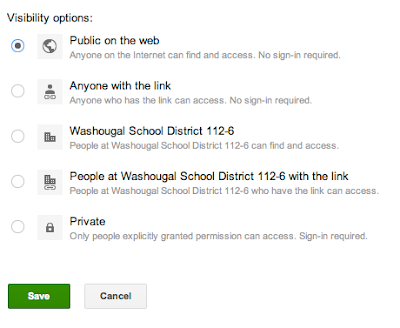
Click the Green Save button.
Tuesday, March 27, 2012
E-mail Search Doesn't Show Items from the Trash
If you search for a message, and don't see a result for it, you may have deleted it. By default, the search feature of the web-based e-mail doesn't show messages that match your criteria which are in the Trash.
You can override this after you perform a search by scrolling to the bottom of the results, and then click the link in "Deleted messages match your Search. Show them."
Here's a screen shot:

You can override this after you perform a search by scrolling to the bottom of the results, and then click the link in "Deleted messages match your Search. Show them."
Here's a screen shot:

Monday, March 26, 2012
Finding a lost/deleted/archived e-mail
Ever wonder how to find a message that was lost/archived/deleted in your new web based e-mail?
If you want, you can find these messages.
Hover your mouse above the list of messages, and it will expand the list. Scroll to the bottom, and choose "More"
The "All Mail" folder will have messages you've archived or lost in other folders (you can search inside there to find a particular message)
The "Trash" folder will contain messages marked as deleted. They stay in there for around a month, then automatically get deleted.
Subscribe to:
Posts (Atom)