Find the calendar you're wanting to embed (or that you've already embedded), and hover your mouse to the right of the calendar's name. A small triangle will show up, click it once to access a drop down menuWednesday, May 30, 2012
Embedding a Calendar in Google sites - required step is sharing calendar first
Find the calendar you're wanting to embed (or that you've already embedded), and hover your mouse to the right of the calendar's name. A small triangle will show up, click it once to access a drop down menuThursday, May 24, 2012
Stop Mac 10.7 from re-opening all the windows in an application after you re-open it
The new Mac computer has a "feature" that's meant to be handy. When you quit a program (Command + Q) or File/Quit, it is going to re-open any files that are currently open the next time you open that same application.
This can be handy for starting up in the morning when you want to carry on where you left off, but if that's not what you want, it can be annoying!
To prevent this, there's a couple things you can do
Instead of hitting command + q you can do command + option + q to have it not re-open those windows
OR
You can do Command + w to close each of the open windows, and then Command + q
OR
you can choose to disable this system wide:
Go into System Preferences, then General, and uncheck the "Restore windows when quitting and re-opening apps." option.
Excel formula to generate a date + a certain number of years
Tuesday, May 22, 2012
Tech eNews May 22, 2012
2. Thanks for Feedback on Survey to Improve the Tech PD Classes
3. Getting Your Computers Ready for Summer
4. Google Sites Step by Step
5. WSD Tech Funds - What, where, when?
6. Surplus that old unwanted/unused equipment!
7. LCD Projector Bulb Replacement
8. Creating a Vacation Message
1. Welcome to Justin Gilson, our New Tech Support Assistant
Please welcome Justin Gilson as the new Tech Support Assistant for Cape Horn-Skye, Canyon Creek, and Washougal High School. Justin comes to us from Havre School District in Montana, where he worked doing Tech Support for several years. He is a graduate of Camas High School, and recently relocated back to the area, and is excited to be working in schools again. Some people may recognize Justin from the Camas Talent Show, where he performed magic tricks for the audience. Justin enjoys geocaching, an activity using GPS coordinates to locate hidden containers, let him know if you know of any interesting 'caches' in the area. Justin is replacing Anthony Collver, who has taken a position with ESD 112.
WHS Staff can reach Justin at ext. 3206, and Cape/CCMS staff can reach him at ext. 3513 or via e-mail at justin.gilson@washougalsd.org
2. Thanks for Feedback on Survey to Improve the Tech PD Classes
Thank you to the 30 staff people who completed the paper and digital versions of the survey on making the Technology Professional Development classes better work for you. We'll analyze the data collected, and use it to make adjustments to the schedule, the course topics, and try to make the classes useful for you. The schedule should come together soon, and we'll have a survey of interest on topics and themes for the classes, as well as some suggestions for alternate times/days.
3. Getting Your Computers Ready for Summer
In the past, some WSD staff have placed garbage bags over computers to keep dust out. None of our tech staff have noted a problem with excess dust settling into computer equipment when it is off, so this isn’t necessary. Please save yourself the trouble, and leave the bags for the garbage cans.
Please make sure you turn all of your computers off before you leave. If you have a laptop that won’t be used over the summer, you should charge the battery fully, and then take it out of the computer for storage. If possible, store the battery in a refrigerator that’s turned on. If you have an iPad or other device with an internal battery, you should fully charge the battery, and then turn the device completely off before you leave. Leaving a device in "sleep" for an extended period of time can damage the batteries.
As much as is possible, please leave your computer’s cables all plugged in. We are aware that the custodians will move much of the equipment to clean carpets, but doing this will cut down on the time it takes to get everyone back up and running in the fall.
4. Google Sites Step-by-Step Guide
If you missed one of the Google sites classes, but are still interested in setting up a webpage for your classroom or department, you can use the excellent step-by-step guide created by class facilitator Rochelle Aiton to guide you through this process. You can download the guide here. Once you have a webpage set up, send the link to your new page to Les Brown, and he can link it to the appropriate school/department page.
5. WSD Tech Funds - what, where, when?
WSD Tech funds. What are they? Where do they come from? What do they pay for?
Voters approved a new Technology levy on February 9, 2010, which collect $250,000 each year for four years, starting in 2011. This year the Tech funds have been used to pay for new Teacher computers for all teachers at Washougal High School, and a current project to replace all teacher computers in grades K-8. Tech funds pay for “standard” software, including Microsoft Office, Inspiration, and Sophos Anti-virus. They also pay for Network infrastructure that allows network accounts for all staff, including the web server and home-folder servers.
6. Surplus that old unwanted/unused equipmentDo you have old, unwanted, or unused equipment in your classroom that you don’t want to keep? Mark it as “surplus” on your year-end inventory, and let your building administrator know you want to get rid of it. The deadline for identifying items as surplus is June 8.
7. LCD Projector and Bulb Replacement
Let Sean or Justin know if your projector’s image is darker than it used to be, has changed color, or is showing spots or dots in the image. In some cases, a new bulb is all that’s needed, and for most classrooms, the Tech staff has an extra bulb. If your projector’s problem can’t be fixed with a new bulb, we’ll put it on the list to get replaced.
8. Creating a Vacation Message
If you are going to be out of the office for an extended period of time, you can create a vacation message which automatically responds to your e-mail, letting folks know you’re gone.
- Log into your district e-mail. http://mail.washougalsd.org/
- Log in as yourself (first.last) with your e-mail password.
- Click the Sprocket in the upper left, then choose Mail Settings
- On the General tab, scroll down to the Vacation Responder section
- Click the Radio button for "Vacation responder on"
- Enter the text you want to have sent to people who send you email in the box
- Set an end date if appropriate (recommended)
(Note: You can opt to have the message sent to anyone, or just people inside the district.)
- Make sure you scroll down or up to click the save button!
If you didn't sent an end date, when you get back, follow the same directions, and set the responder to "off" to remove the message.
Tuesday, May 1, 2012
Tech eNews 5-1-2012
Friday, April 13, 2012
Tech eNews 4-13-2012
Topics for this Tech eNews 4-13-2012
1. Google Sites Advanced Class 4/18/2012 4:00-7:00 PM
2. Thanks to Teachers Helping with Tech Classes
3. Increased Bandwidth Coming Soon
4. Inventory Starting at WHS
5. Spilled Water on a Keyboard? You Might Have a Chance to Save It!
6. Changing Your E-mail Password
7. K-5 Teachers –Play Audio From a Movie using the Lightspeed System
8. Making Your Google Site Public
1. Google Sites ADVANCED Class 4-18-2012 from 4-7 PM, EHS Lab
You asked, and we’ve planned it! Teachers who have attended any of the Google sites classes this year can come to a 3 hour class with Jay Bennett to learn about additional features you can use with your website. We will explore integrating items like Google Calendars, picture slideshows, and attaching documents from Google Docs.
Please e-mail Les Brown to register, so we can plan for snacks. 3 Clock Hours are Approved through ESD 112. Teachers may pay themselves to attend this class, if it aligns with their professional development goal, they have PD funds available, and their principal signs off on it.
2. Thank You to Teachers Helping with Tech Classes
A big thank you to all of the incredible WSD teachers who have worked to plan and teach the Technology classes this year. We wouldn’t be able to offer as many classes or cover as many topics without your colleagues who have stepped up and lead these classes. A HUGE “Thank You” to Kim Dillon, Rochelle Aiton, James Bennett, Rebecca Woodings, Susan Nesmith, Scott Rainey, Chelsea Meats, Trudy Tkach, Heidi Kleser, Cheryl MacIntyre, and Philicia Weaver for the hard work they put into this year’s classes!
3. Increased Bandwidth Coming Soon
K20, the district’s Internet service provider, is working to establish a higher capacity Internet connection for our district. This new connection should be in place sometime in late April or early May, and will help alleviate some bottlenecks. However, district staff still need to supervise students using the computers to make sure their usage isn’t disruptive to other students or critical business systems. Unless it serves a curriculular purpose, students should not be streaming audio or video during the school day.
4. Inventory is Coming to WHS
Getting your classroom ready for the every-other-year district-wide inventory is simple and painless. Here are a couple things that will keep your classroom from getting blanketed in yellow slips:
- Make sure any personal equipment is marked as belonging to you and not the district. A sticker or note stuck to the equipment would be very helpful!
- Make sure any new WSD equipment in your classroom has a tag
- Have your equipment at work! You must get permission from your building administrator to check out any equipment. There is a short form they need to keep track of while you have the item away from the building.
- If you have equipment on loan to another staff person, you should have it written down somewhere in your room, or document it with your building’s inventory designee.
5. Spilled Water on a Keyboard? Quick Action May Help You Save It!
If you spill regular water on a keyboard, quick action may help you save it. Qucikly turning the keyboard over, and allowing water to drain out instead of into the keyboard, can keep it from ruining the electrical contacts inside the keyboard. Make sure you unplug the keyboard from the computer as quickly as you can, too, to prevent if from shorting out.
If you have this happen, leave the keyboard upside down for a day or two before you try to plug it back in, so it can dry completely. Sean or Anthony can get you a “loaner” keyboard while you wait.
If you spill coffee, tea, or other types of liquids, they are more likely to damage the keyboard, but you can still try the above steps. Just remember that quick action can save the keyboard.
6. Changing Your E-mail Password
If you want to change your E-mail password, you can follow these easy steps:
- Sign into your WSD e-mail account.
- Click on your e-mail address in the Black Bar in the upper right corner of the window
- Click Account
- On the page that opens up, click “Change Password” and follow the directions there.
7. K-5 Teachers, You Can Play Audio Using Your Lightspeed System
Nearly all elementary classrooms in the Washougal School District have classroom sound amplification systems. K-5 teachers can use a small cable to plug devices like a laptop, iPod, DVD player, or other audio source into their microphone, and have the ceiling mounted speaker provide the sound. This is often far louder than the small speakers your laptop can produce. If you don’t have the cable needed for this, just ask Sean or Anthony, and they’ll provide one for you, and can help you set it up the first time.
8. Making Your Google Website Public
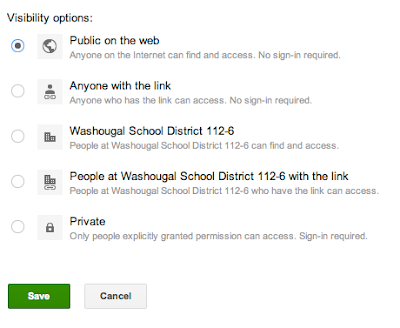
If you took the Google Sites class and got your page up and running, you may still have one step left. If people are saying that they can't get to your Google site, or get a "password required" page, you may have your permissions set such that the public can't get to it. To change the site permissions, do this:
- Go to your website by clicking Sites in the black bar at the top of your e-mail
- On your main page, click the More button
- Choose Sharing and Permissions
- In the "who has access" section, click the Change button, and set it so anyone on the Internet can find and view the page.
- Click the radio button next to “Public on the web”
- Click the green “Save” button to save the changes
Sharing your Google Site